






Why Is My Printer Printing Blank Pages? Top Reasons & Fixes 2
Press Print, wait for the machine to warm up, and hear the familiar mechanical movements.
And then it happens.
Your office printer suddenly prints blank pages.
Whether you’re using a Canon, Epson, HP, or Brother printer, this issue is incredibly frustrating, especially when you’re in the middle of urgent work. Fortunately, blank pages are usually caused by simple problems that you can fix at home or the office without technical knowledge.
Printers remain essential for both office productivity and home use, and any interruption—especially blank page output can quickly disrupt your workflow. Most users immediately assume the printer is damaged, but in reality, blank prints are usually linked to minor issues like ink flow, paper settings, clogged printheads, or outdated drivers. Understanding these common problems is the key to restoring print quality quickly.
Whether you’re troubleshooting an Epson EcoTank, a Canon Pixma, an HP OfficeJet, or a Brother multifunction printer, identifying the root cause will help you fix blank pages efficiently without needing professional support.
In this guide, we’ll explore why your printer prints blank pages, the most common causes, and step-by-step troubleshooting to solve the problem quickly.
Common Causes of Printer Printing Blank Pages
Before diving into repairs or calling a technician, it’s helpful to understand that blank pages usually point to basic maintenance or communication issues inside the printer. These problems are common across all major brands and often relate to ink supply, clogged nozzles, driver errors, or incorrect paper settings.
Here are the most frequent reasons why your printer may be producing blank pages.
1. Empty or Low Ink/Toner Levels
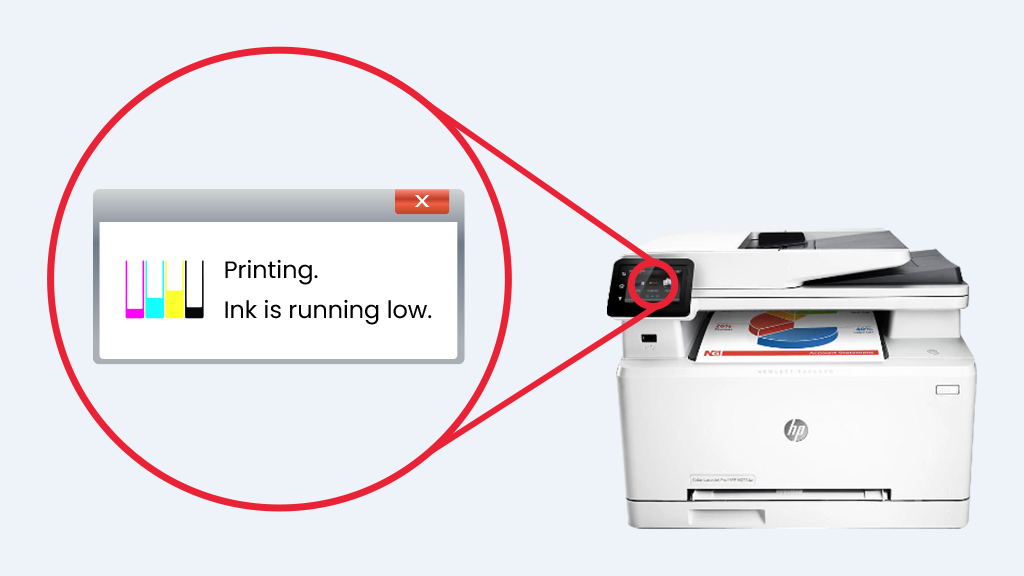
Low ink or toner is the simplest yet most overlooked reason for blank printouts. Even if the display shows remaining ink, dried ink, faulty cartridges, or improperly shaken toner can interrupt the ink flow. This problem is common in all inkjet and laser models from Epson, Canon, HP, and Brother.
What to Do
- Open the printer software on your PC or use the control panel.
- Check the remaining ink levels.
- Replace empty cartridges (use original cartridges for best results).
- Ensure the ink/toner is compatible with your printer model.
Tip: Epson EcoTank users should ensure the tank isn’t drying out or clogged, even when ink levels appear full.
2. Clogged Printhead (Very Common in Inkjet Printers)
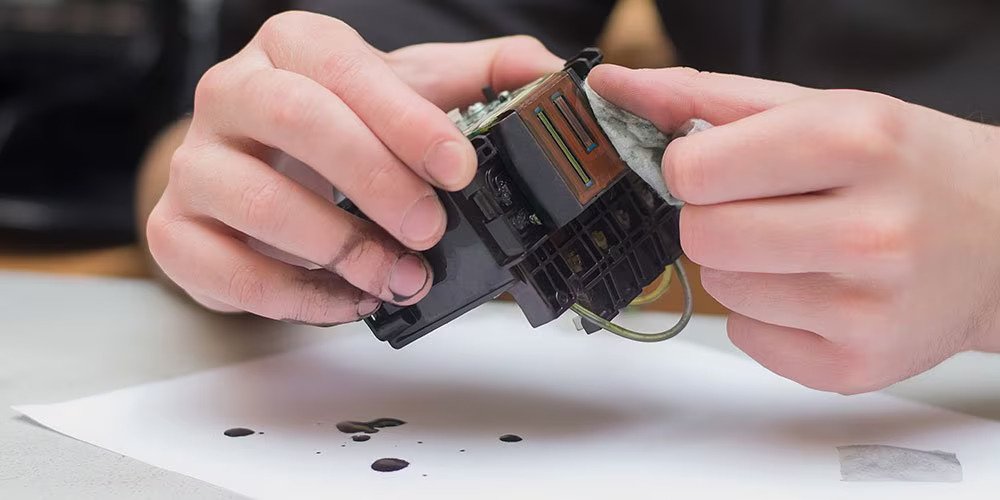
Printhead clogging is one of the most common reasons for blank printing, especially in printers that sit unused for long periods. Ink dries quickly inside the nozzles, preventing black or color ink from reaching the paper. This issue is widely seen in Epson and Canon printers, which rely on precision nozzles for high-quality prints.
How to Fix It
- Run the automated printhead cleaning utility.
- Print a nozzle check pattern.
- If needed, perform a manual printhead cleaning using lint-free tissue and cleaning solution.
Avoid using needles, blowing air, or DIY hacks that may damage the printhead.
3. Incorrect or Improper Cartridge Installation
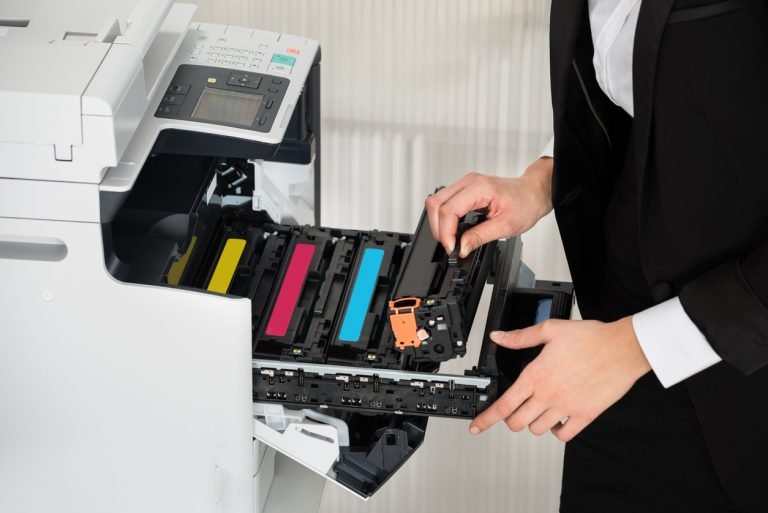
If a cartridge is even slightly misaligned or the protective seal is still attached, your printer may stop applying ink entirely. Incorrect installation is especially common with new cartridge users often insert them loosely or forget to remove safety tapes. This issue is common in HP, Brother, and Canon models.
How to Fix It
- Open the cartridge cover.
- Remove and reinstall the cartridge firmly.
- Ensure protective tape on new cartridges is removed.
- Check if your printer shows cartridge recognition errors.
4. Paper Type, Size, or Loading Issues
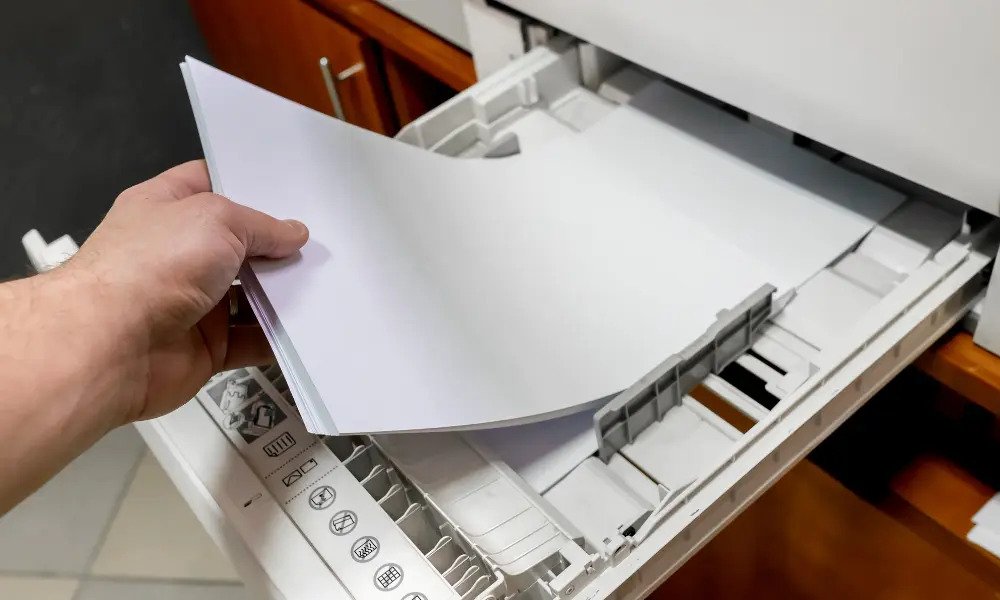
Your printer depends on accurate paper detection to apply the correct amount of ink. Using the wrong paper type, loading warped sheets, or selecting incorrect paper settings can cause the printer to skip ink output entirely. This commonly affects HP OfficeJet, Canon Pixma, and multifunction printers that rely heavily on sensor-based paper detection.
What to Check
- Correct paper size (A4, Letter, Legal)
- Correct paper type (Glossy, Matte, Plain)
- Ensure paper is not:
1. Wet or curled
2. Dusty or sticky
3. Overloaded in the tray
Incorrect paper settings can cause Canon and HP printers to skip ink application.
5. Software or Driver Issues
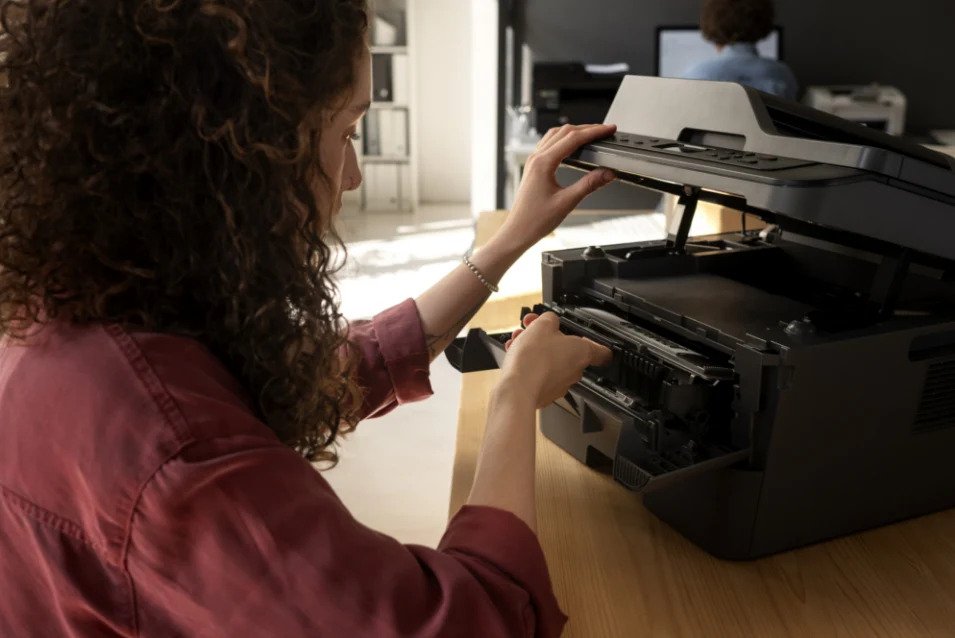
Printer drivers act as the bridge between your computer and the printer. When they become outdated, corrupted, or incompatible with your operating system, blank printing and communication failures often occur. This is common after major Windows or macOS updates, especially for Epson, Brother, HP, and Canon printers.
Fix It
- Visit the manufacturer’s website:
Canon Support
Epson Support
Brother Support
HP Support - Download and install the latest drivers
- Update printer firmware
- Reset printing preferences to default.
6. Connectivity Problems

Weak connections, whether via Wi-Fi, USB, or mobile printing apps, can interrupt print data transmission, resulting in partial or blank prints. Network instability, incorrect Wi-Fi bands, or faulty USB cables can cause communication errors between your device and printer.
Fix Connectivity Issues
- If using USB: Reseat the cable or try a new one.
- If using Wi-Fi: Restart the router and printer.
- Ensure both devices are connected to the same network.
- Remove and re-add the printer to your device.
Troubleshooting Steps: Step-by-Step Fix for Blank Pages
Once you identify what’s causing the blank pages, it’s time to fix the issue. The troubleshooting process below covers everything from ink levels and printhead cleaning to driver reinstallation and paper setting verification. These steps apply to both inkjet and laser printers across all major brands.
Step 1: Check Ink or Toner Levels
- Open printer utility → Ink/Toner Status
- Replace empty or nearly empty cartridges
- Shake toner cartridges gently before reinstalling
This alone fixes most blank page issues.
Step 2: Run Printhead Cleaning Cycle
- Go to Printer Maintenance
- Select “Head Cleaning” or “Deep Cleaning”
- Print a test page
Epson and Canon printers may require 2–3 cleaning cycles.
Step 3: Check Paper Settings & Print Preferences
- Ensure correct paper size and type
- Check if grayscale, draft, or economical mode is enabled
- Ensure “Print to PDF” isn’t selected accidentally
Step 4: Update or Reinstall Printer Drivers
- Uninstall the existing printer driver
- Restart the computer
- Install the latest driver from the official brand website.
This resolves 90% of software-related printing issues.
Step 5: Restart Your Printer and Computer
A simple restart resets:
- Print spooler
- Connectivity
- Background printing errors
Advanced Troubleshooting (If Problem Still Exists)
If your printer continues printing blank pages even after basic troubleshooting, it may require deeper resets or alignment processes. These methods help fix internal glitches, misaligned nozzles, firmware issues, or stuck print jobs common in Epson EcoTank, HP LaserJet, and Canon Pixma models.
1. Clear Print Queue

Sometimes multiple stuck jobs prevent the printer from outputting properly.
Windows:
Settings → Devices → Printers → Your Printer → Open Queue → Cancel All
Mac:
System Settings → Printers → Open Print Queue → Clear Jobs
2. Align Printer Cartridges
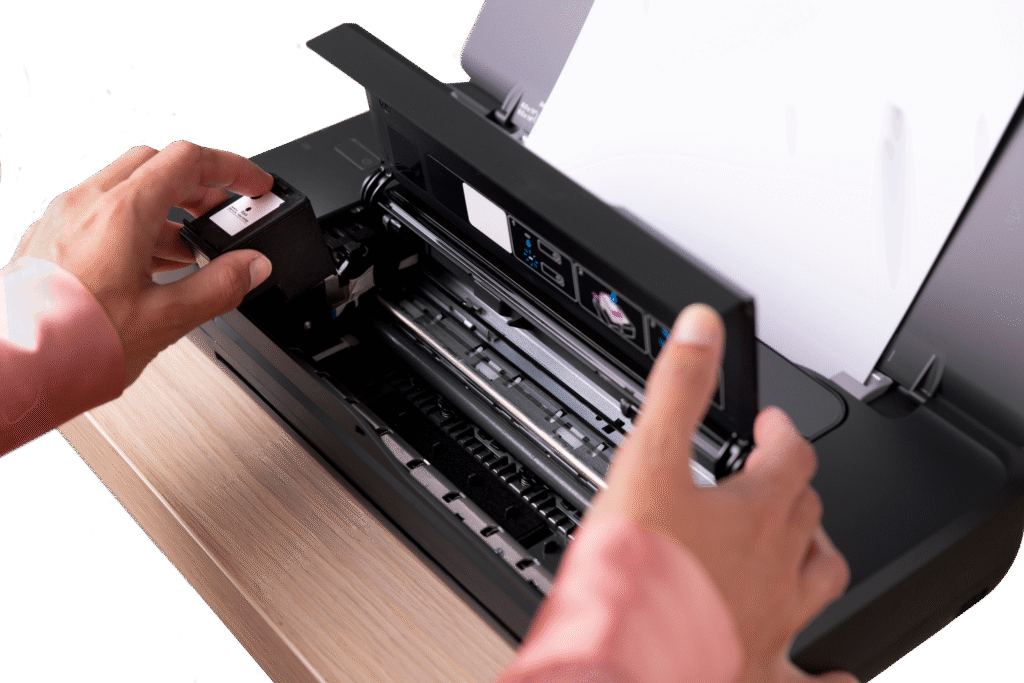
Misalignment leads to faded or blank pages.
Go to:
Printer Maintenance → Alignment Wizard
3. Restore Printer to Default Settings

If unknown settings are causing errors:
- Reset the printer to factory defaults
- Reconnect and reconfigure
This works well for network printers and wireless Epson EcoTank models.
Prevention Tips to Avoid Blank Pages in the Future
To prevent recurring blank page issues, adopting consistent printer care is essential. Small habits like printing regularly, using high-quality paper, and updating drivers can significantly improve printer lifespan and print quality. Using genuine ink & toner also ensures smoother ink flow and reduces the chances of clogs or print failures. These practices help avoid common issues in both home and office environments.
- Print Regularly: Prevents ink from drying—especially in inkjet printers.
- Use Quality Paper: Avoid cheap, fibrous paper that absorbs ink incorrectly.
- Keep Drivers Updated: Outdated drivers cause printing errors.
- Store Cartridges Properly: High heat or humidity can damage ink.
- Service Your Printer Annually: Useful for businesses relying on heavy-use printers.
FAQs
1. Why is my Epson printer printing blank pages even with full ink?
Likely due to clogged printhead nozzles. Run a head cleaning cycle and print a nozzle check.
2. Why does my Canon printer suddenly print empty pages?
Cartridges may not be inserted correctly, or the printhead needs cleaning.
3. Why is my HP laser printer printing blank pages?
A failing toner drum, low toner, or malfunctioning transfer roller could be the cause.
4. Does using non-original cartridges cause blank pages?
Yes. Poor-quality cartridges often cause ink flow issues, clogging, and recognition errors.
5. Can outdated printer drivers cause blank printing?
Absolutely. Corrupted drivers frequently result in blank or partial prints.
Conclusion
Blank pages may seem like a serious printer issue, but most of the time, the solution is simply checking ink levels, cleaning printheads, updating drivers, or resetting settings. Whether you use Canon, Epson, Brother, or HP printers, these troubleshooting steps can help restore normal printing quickly.
If your office printer frequently prints blank pages or requires professional servicing, Kepler Tech LLC, one of the leading printer dealers in Dubai and across the UAE, can help you with expert support, genuine ink & toner, and high-quality printer solutions.




The reasons for printers printing blank pages are explained clearly, and the practical fixes make troubleshooting easy even for non-technical users.
A great article that clearly explains the common causes of printers printing blank pages and provides practical, easy-to-follow solutions.