






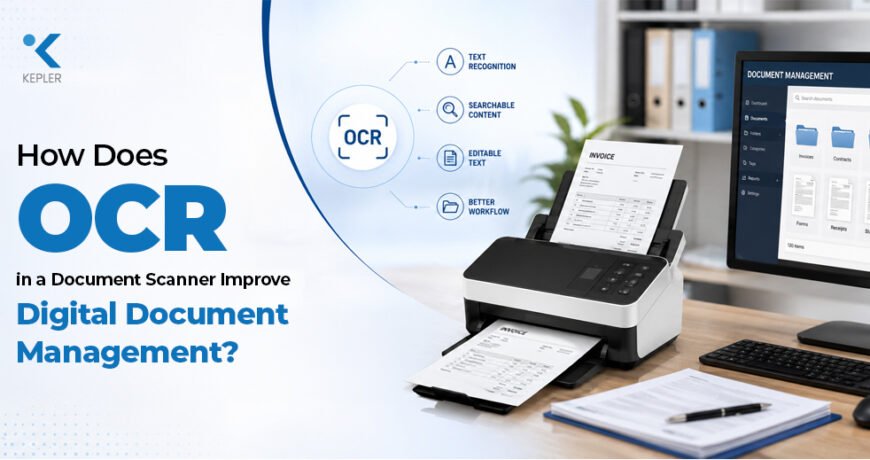
How Does OCR in a Document Scanner Improve Digital Document Management? 1
A paper document may only contain a few pages, but finding the right information inside hundreds or thousands of physical documents can take considerable time. Searching through folders, manually entering information, and repeatedly scanning the same documents can quickly become inefficient for a busy office.
This is where OCR in a document scanner can make a significant difference.
OCR, or Optical Character Recognition, allows scanned documents to be converted from simple images into machine-readable text. Instead of having a scanned document that can only be viewed as an image, OCR can help turn its contents into searchable and, in many cases, editable digital information.
When combined with a suitable document scanner, OCR can support faster document retrieval, better organization, reduced manual data entry, and more efficient digital document workflows.
In this guide, we’ll explore how OCR works in a scanner, how it supports digital document management, what affects OCR accuracy, and how businesses can use document scanning as part of a more organized paperless workflow.
What Is OCR in a Document Scanner?
OCR stands for Optical Character Recognition.
It is a technology that identifies characters, words, and numbers within a scanned document and converts them into machine-readable text.
When a document is scanned without OCR, the scanner essentially creates a digital image of the page. A computer can display that image, but the text within it may not be directly searchable or editable.
OCR adds another layer of functionality.
For example, imagine scanning a 20-page invoice document. Without OCR, you may need to visually inspect every page to find a particular invoice number. With OCR processing, the recognized text can be indexed, allowing you to search for specific words or numbers much more quickly.
In simple terms:
Paper document → Scanner → Digital image → OCR → Recognized text → Searchable digital document
This makes OCR particularly useful for offices that regularly handle contracts, invoices, forms, reports, applications, records, and other paperwork.
How Does OCR Work in a Document Scanner?
OCR usually involves several stages rather than simply pressing a scanning button.
1. The document is scanned
The document scanner captures the physical page and converts it into a digital image.
The quality of this image matters because OCR software needs to distinguish characters from the background.
2. The scanned image is processed
The OCR system may analyze characteristics such as:
- Text alignment
- Character shapes
- Spacing
- Lines
- Paragraphs
- Background noise
- Document layout
Image-processing techniques can help make the text easier for the OCR engine to recognize.
3. Characters are identified
The OCR system analyzes the shapes in the document and attempts to determine which letters, numbers, and symbols they represent.
For example, it may recognize an image of a printed word such as “Invoice” and convert it into actual digital text.
4. Text is converted into usable information
The recognized text can then be used to create searchable documents or support other digital workflows, depending on the software being used.
The exact capabilities can vary depending on the scanner, scanning software, OCR engine, document type, and workflow.
What Is the Difference Between Scanning and OCR?
Scanning and OCR are related, but they are not the same thing.
Scanning
A scanner captures a physical document and creates a digital representation of it.
The result can be a digital image or a document file containing an image.
OCR
OCR analyzes the scanned image and identifies the text contained within it.
This can make the text searchable and, depending on the software and document type, editable.
For example:
Traditional scan:
A scanned invoice is saved as an image-based PDF.
OCR-enabled workflow:
The same invoice can be processed so that its text becomes searchable within the digital document.
This distinction is important when businesses are trying to move beyond simply storing scanned images and toward effective digital document management.
How Does OCR Improve Digital Document Management?
The biggest advantage of OCR is that it can turn large collections of scanned documents into more usable digital information.
Instead of treating every document as an image, businesses can make its text searchable and easier to organize.
1. Faster document searching
Imagine having thousands of scanned documents stored digitally.
Without searchable text, finding a particular document may require opening files individually.
OCR can allow users to search for words or phrases contained within recognized documents, depending on the document-management system being used.
2. Easier information retrieval
OCR can make it easier to locate information such as:
- Customer names
- Invoice numbers
- Reference numbers
- Dates
- Addresses
- Product names
- Contract terms
This can reduce the amount of time employees spend manually searching through files.
3. Reduced manual data entry
Manually typing information from paper documents into digital systems can be repetitive and time-consuming.
OCR can recognize printed information and make it available for further processing, although human verification may still be necessary for important records.
4. Better document organization
Searchable text can help organizations categorize and retrieve documents more efficiently.
For example, a company may organize documents according to customer, project, invoice number, department, or document type.
5. Improved accessibility
Digital documents can be easier to access across approved business systems compared with physical files stored in separate cabinets.
What Types of Documents Can Benefit From OCR?
OCR can be useful for many types of business documents.
Common examples include:
- Invoices
- Receipts
- Contracts
- Purchase orders
- Application forms
- Reports
- Business correspondence
- Financial records
- Customer documents
- Archived paperwork
- Administrative records
The effectiveness of OCR depends heavily on the quality and structure of the original document.
Clean, clearly printed documents are generally easier for OCR systems to process than damaged, blurry, handwritten, or poorly scanned documents.
How Does Scanner Quality Affect OCR Accuracy?
The scanner plays an important role because OCR works with the digital image captured from the physical document.
If the original scan is poor, the OCR system may have difficulty recognizing the text accurately.
Several scanner-related factors can affect the result.
Resolution
Scanning at an appropriate resolution can help preserve character details.
However, higher resolution isn’t automatically better for every document. Extremely high resolutions can create unnecessarily large files and increase processing requirements.
Image clarity
Blurred or distorted documents can make character recognition more difficult.
Color and contrast
Appropriate contrast between the text and background can help OCR systems distinguish characters more effectively.
Document alignment
Skewed pages can affect text recognition and document layout analysis.
Paper condition
Wrinkled, damaged, faded, or stained documents can create additional challenges.
What Is OCR Accuracy and What Can Affect It?
The accuracy of recognition depends on several factors, including:
- Print quality
- Font type
- Font size
- Scan resolution
- Image clarity
- Contrast
- Document condition
- Language
- Layout complexity
- Handwriting
- Background patterns
For example, a clean typed document may be recognized with relatively high accuracy, while a faded document with unusual fonts and a complex background may produce more recognition errors.
This is why important business information should be reviewed before it is used for critical decisions or automated processes.
How Do Automatic Document Feeders Support OCR Workflows?
Businesses often need to scan more than one page at a time.
An Automatic Document Feeder (ADF) allows multiple sheets to be loaded into a scanner so that pages can be processed sequentially.
This can be particularly useful for:
- Multi-page contracts
- Invoices
- Reports
- Application forms
- Archived documents
- Administrative paperwork
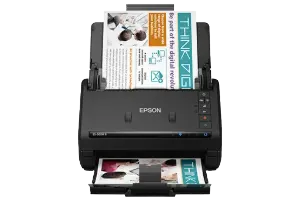
For example, an office using an Epson WorkForce document scanner may use an ADF-based workflow to process batches of documents rather than manually placing each sheet on a scanner glass.
This can make large-scale digitization considerably more practical.
What Is Duplex Scanning and Why Is It Useful?
Many business documents contain information on both sides of a page.
Duplex scanning allows the scanner to capture both sides of a document, depending on the scanner’s capabilities.
This can help reduce manual page handling when digitizing double-sided documents.
For example, a multi-page business form might contain information on both the front and back of each sheet. A duplex-capable scanner can capture both sides as part of the scanning workflow.
When combined with OCR, the recognized text from both sides can become part of the searchable digital document.
How Can OCR Help Create a Paperless Office?
Going paperless doesn’t necessarily mean eliminating every physical document immediately.
Instead, many organizations gradually digitize documents and build workflows around digital storage and retrieval.
A typical workflow might look like:
Physical Document → Document Scanner → OCR → Searchable File → Digital Storage → Document Retrieval
For example, an organization could scan older paper records, process them using OCR, and organize the resulting digital files according to its document-management requirements.
This can reduce dependence on physical filing cabinets and make information easier to retrieve.
How Do Business Document Scanners Fit Into Digital Workflows?
A business scanner is generally designed around the needs of regular document processing rather than occasional home scanning.
Depending on the model, business scanners may include features such as:
- Automatic document feeding
- Duplex scanning
- High-speed scanning
- Network connectivity
- Wireless connectivity
- OCR software compatibility
- Batch scanning
- Document management integration
Epson’s WorkForce range provides examples of business-oriented scanning equipment. For instance, the Epson WorkForce DS-870 can be referenced as an example when discussing high-volume document scanning workflows, while a model such as the Epson WorkForce DS-730N can be used as an example when discussing network-based document scanning.
The purpose of mentioning these models is to illustrate different scanner applications. The actual OCR workflow will depend on the scanner, software, operating environment, and document-management system being used.
What Is the Role of Network Scanning?
In an office environment, documents may need to be accessed by different employees or departments.
A network-enabled scanner can support workflows where scanned documents are sent through a shared network environment rather than being tied to a single computer.
This can be useful for organizations with:
- Multiple departments
- Shared document repositories
- Centralized scanning processes
- Distributed employees
- Large volumes of paperwork
When OCR is incorporated into such workflows, recognized text can potentially make digital documents easier to search and organize.
How Can OCR Reduce Manual Data Entry?
Consider an employee who receives hundreds of printed forms every month.
Without OCR, the employee may need to read information from each form and manually type it into another system.
OCR can recognize printed text and make that information available digitally.
Depending on the software and workflow, the recognized information may then be:
- Reviewed
- Copied
- Exported
- Indexed
- Stored
- Used in other applications
OCR doesn’t necessarily eliminate human involvement. Instead, it can reduce repetitive typing and allow employees to spend more time reviewing and processing information.
What Are the Limitations of OCR?
While OCR is highly useful, it isn’t a replacement for document quality or human verification.
Some documents are more difficult to process than others.
Common challenges include:
- Handwritten text
- Poor-quality scans
- Faded documents
- Unusual fonts
- Complex tables
- Multi-column layouts
- Stamps and annotations
- Low contrast
- Damaged pages
- Background patterns
For important financial, legal, or administrative information, OCR output should be checked for errors before being relied upon.
How Can Businesses Improve OCR Results?
A few simple practices can make document scanning and OCR more reliable:
- Use a suitable document scanner for the workload.
- Keep scanner glass and feeding components clean.
- Use an appropriate scanning resolution.
- Make sure documents are aligned correctly.
- Remove paper clips, staples, and other obstructions when necessary.
- Use appropriate contrast and image-processing settings.
- Keep documents flat and readable.
- Use duplex scanning for suitable double-sided documents.
- Review OCR output when accuracy is important.
- Organize recognized documents using a consistent naming and storage system.
Good input quality is one of the simplest ways to improve the usefulness of OCR.
A Simple OCR Document Management Workflow
Businesses can think of OCR-enabled scanning as a series of connected steps:
| Stage | What Happens |
| Document preparation | Pages are sorted and prepared for scanning |
| Scanning | The document scanner captures the pages |
| Image processing | The scanned image is cleaned or adjusted |
| OCR | Text is identified and converted into machine-readable form |
| Verification | Important information is checked for accuracy |
| Organization | Documents are named, categorized, or indexed |
| Storage | Digital files are stored in the appropriate system |
| Retrieval | Users can search for and access documents |
The exact workflow can vary depending on the organization’s software and document-management requirements.
Frequently Asked Questions
1. What is OCR in a document scanner?
OCR, or Optical Character Recognition, is technology that analyzes scanned document images and identifies text within them. This can make the text searchable and, depending on the software, editable or available for further processing.
2. Does every document scanner have built-in OCR?
Not necessarily. OCR functionality may be provided by the scanner’s software, a connected application, or a separate document-management solution. The available features depend on the scanner and software being used.
3. What is the difference between OCR and scanning?
Scanning creates a digital representation of a physical document. OCR analyzes that scanned image and converts recognizable text into machine-readable information.
4. Can OCR make scanned PDFs searchable?
Yes, OCR can be used to recognize text in scanned documents and create searchable PDFs when the scanner or associated software supports this functionality.
5. Does scanner resolution affect OCR accuracy?
Yes. An appropriate scanning resolution can help preserve the details needed for text recognition. However, extremely high resolution isn’t always necessary and can increase file size and processing requirements.
6. Can OCR recognize handwritten documents?
OCR systems are generally more reliable with clear, printed text. Handwriting can be significantly more difficult to recognize, and accuracy depends on the handwriting style, software, document quality, and technology being used.
7. How does duplex scanning help with OCR?
Duplex scanning captures both sides of a document automatically. When combined with OCR, the text from both sides can be recognized and incorporated into the resulting digital document.
8. How does OCR help businesses reduce manual data entry?
OCR can convert printed information from scanned documents into machine-readable text. This can reduce the need to manually type certain information, although important data should still be reviewed for accuracy.
9. Can OCR be used for large volumes of documents?
Yes. OCR can be particularly useful when combined with document scanners designed for batch or high-volume scanning. Features such as automatic document feeders and duplex scanning can make large-scale digitization more efficient.
Conclusion
OCR can turn a basic scanned image into a much more useful digital document by making its text searchable and, depending on the software, available for editing or further processing. When combined with a suitable document scanner, OCR can support faster information retrieval, reduce repetitive data entry, and improve the organization of digital records.
The quality of the scanner input still matters. Resolution, document condition, alignment, contrast, scanner settings, and the capabilities of the OCR software can all influence the final result. Features such as automatic document feeding, duplex scanning, high-speed scanning, and network connectivity can also make OCR-based document workflows more practical for businesses.
Examples such as Epson’s WorkForce business scanner range show how document-scanning equipment can fit into different office workflows, from everyday document digitization to higher-volume scanning environments. However, the scanner is only one part of the overall process. Effective document management also depends on suitable OCR software, file organization, storage, security, and verification procedures.
For businesses looking to improve their document-scanning and printing infrastructure, Kepler Tech LLC, one of the authorized printer dealers in Dubai and across the UAE, offers solutions for different business and professional requirements. A well-planned scanning and OCR workflow can help organizations move from paper-heavy processes toward faster, more searchable, and better-organized digital document management.




OCR makes a big difference when dealing with large collections of scanned documents, especially when you need to search for specific information quickly. Another useful step when managing revised PDFs is comparing the current version with the previous one, since changes can be easy to miss when reviewing long documents manually. A PDF comparison tool can help with that by highlighting text and visual differences between two versions.