






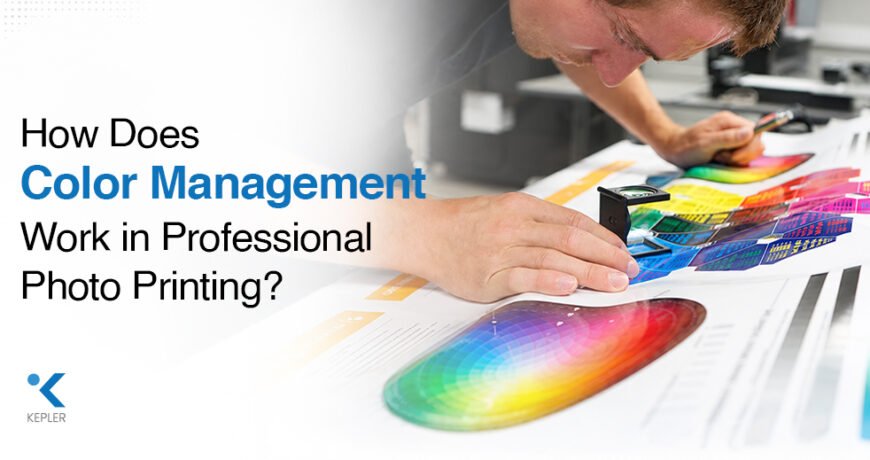
How Does Color Management Work in Professional Photo Printing? Leave a comment
Have you ever edited a photograph until the colors looked perfect on your monitor, only to find that the printed image looks noticeably different? Skin tones may appear warmer, shadows can become darker, or a vibrant blue may look less vivid on paper.
This is a common challenge in professional photo printing, and one of the main solutions is color management.
Color management is the process of keeping colors as consistent and predictable as possible throughout the printing workflow. It connects the image, monitor, editing software, printer, ink, and printing media so that the final output is closer to the intended result.
For photographers, photo studios, designers, artists, and commercial print businesses, understanding color management is particularly important when working with large format printers and professional photo-printing equipment.
In this guide, we’ll look at how color management works in a printer-focused workflow, why ICC profiles matter, how monitor calibration affects print output, and how factors such as printer settings, ink, and paper influence color accuracy.
What Is Color Management in Professional Photo Printing?
Color management is a system used to achieve more consistent and predictable color reproduction between digital images and printed output.
A photograph can pass through several stages before it becomes a physical print:
Image → Monitor → Editing Software → Printer → Ink + Paper → Final Print
Every part of this process can affect how color is reproduced.
A monitor creates colors using light, while a printer creates colors by placing ink onto a physical surface. Because these technologies work differently, the colors displayed on a screen may not look exactly the same when printed.
A printer also has physical limitations. It cannot necessarily reproduce every color that can be displayed on a modern monitor. The type of ink, paper, print settings, and printer technology can all influence the final result.
A proper color-management workflow helps account for these differences.
Why does color management matter?
Without proper color management, professional printers may produce results such as:
- Colors that differ from the original image
- Incorrect or inconsistent skin tones
- Dull-looking colors
- Oversaturated areas
- Darker shadows
- Loss of highlight detail
- Different results on different types of paper
- More test prints and wasted media
For a photographer printing the same image in different sizes or batches, consistency can be just as important as the quality of an individual print.
How Does a Printer-Based Color Management Workflow Work?
Color management doesn’t begin when you press the print button. Several decisions need to be made before the image reaches the printer.
A typical professional workflow looks like this:
Image Capture → Image Editing → Monitor Calibration → Color Profile → Printer & Media Selection → Print Settings → Final Print
Let’s look at each stage.
1. Capture the Image
The camera captures color information through its sensor. Exposure, white balance, lighting, and camera settings can all influence the original image.
A properly exposed photograph gives you more flexibility during editing and printing.
2. Edit the Image
The photograph is adjusted using editing software.
Common adjustments include:
- Exposure
- White balance
- Contrast
- Saturation
- Sharpness
- Shadows
- Highlights
The monitor needs to provide a reasonably accurate representation of the image so that these adjustments can be made with confidence.
3. Prepare the Image for Printing
Before printing, the appropriate color space and printing profile should be considered.
The printer, ink, paper, and print-quality settings can all influence how the final colors appear.
4. Select the Printer and Printing Media
The choice of large format inkjet printer and printing media is particularly important for professional photographic work.
A printer designed for high-quality photo output can provide a different level of color reproduction and detail compared with a standard office printer.
5. Configure the Printer
Printer settings need to match the selected media and desired output quality.
Incorrect settings can result in:
- Excessive or insufficient ink
- Incorrect color reproduction
- Poor contrast
- Uneven output
- Unexpected print density
6. Produce the Final Print
The printer converts digital color information into combinations of inks that are deposited onto the selected paper or other printing media.
The goal is to make this conversion as predictable as possible.
What Are Color Profiles in a Printer Workflow?
A color profile describes how a particular device or printing setup handles color.
In professional photo printing, profiles may be associated with:
- Monitors
- Cameras
- Printers
- Ink
- Paper
- Specific printer-and-media combinations
This becomes especially important when using different types of inkjet printing media.
For example, printing the same photograph on glossy photo paper and matte fine-art paper can produce noticeably different results. The surface and absorption characteristics of the media affect how ink appears after printing.
A suitable profile helps the color-management system account for these differences.
What Are ICC Profiles and How Do They Help Printers?
ICC profiles are an important part of modern color-management workflows.
ICC stands for International Color Consortium. An ICC profile provides standardized information about the color characteristics of a device or medium.
In simple terms, it helps software understand how a particular printer, monitor, or printer-and-paper combination reproduces color.
For example, a printer profile can help describe how a specific printer behaves when using a particular type of paper and ink.
A printer profile can depend on:
- Printer model
- Ink characteristics
- Paper type
- Print quality
- Printer settings
- Other printing conditions
This is why selecting the correct profile is important.
Using a profile intended for one paper on a completely different type of paper can produce unexpected results, even when the printer itself is functioning correctly.
Why Is Monitor Calibration Important for Printer Output?
It may seem strange that a printer-related problem can start with a monitor, but the two are closely connected.
Your monitor is where you make decisions about the image before sending it to the printer.
If the monitor is too bright, for example, you may adjust the photograph to look darker than necessary. When the image is printed, the result may appear much darker than expected.
Monitor calibration helps create a more consistent viewing environment.
Calibration can involve adjusting:
- Brightness
- White point
- Gamma
- Contrast
- Color response
A calibrated monitor doesn’t mean that the screen and printed photograph will look identical. They use completely different methods to produce color.
However, it provides a more reliable reference when preparing photographs for printing.
Quick printer workflow check
Before changing your printer or blaming the ink, check:
Is the monitor calibrated?
Is the correct color profile being used?
Is the correct paper selected in the printer settings?
Are the printer settings appropriate for the media?
Is the printer properly maintained?
Are you evaluating the print under suitable lighting?
Sometimes the issue is not the printer hardware but an incorrect setting somewhere in the workflow.
How Do Printer Profiles Affect Color Accuracy?
A professional printer has to translate digital color information into physical ink.
This isn’t a simple one-to-one process.
The final color depends on how the printer’s ink interacts with the selected media. The same RGB value can therefore produce different physical results depending on the printing conditions.
This is where printer profiles become particularly useful.
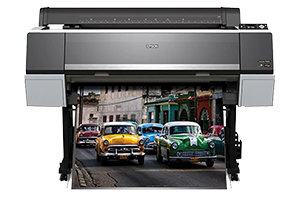
Professional large format printers are often used for applications where predictable color reproduction is important. For example, Epson SureColor printers can be used in professional photographic and fine-art printing workflows.
An Epson SureColor model such as the SC-P9500 can be considered an example of equipment used for professional large-format photographic output. The printer itself is only one part of the process, however. Its results also depend on the selected ink, media, profiles, and print settings.
Printer profiles are particularly useful for:
- Professional photographs
- Fine-art prints
- Exhibition prints
- Portfolio images
- Commercial photography
- Artwork reproduction
The goal isn’t simply to produce a colorful print. It is to produce a print with colors that are predictable and repeatable.
How Do Ink and Paper Affect Printer Color?
When discussing color management, it’s easy to focus entirely on the printer and overlook the media.
But the paper is an active part of the printing process.
Different types of photo paper can absorb and reflect ink differently. A glossy surface may produce a different appearance from a matte surface, while fine-art media may have a distinct texture and brightness.
Important media characteristics include:
- Surface finish
- Brightness
- Texture
- Ink absorption
- Ink density
- Gloss level
- Color gamut
- Drying behavior
This is why inkjet fine art paper and other professional printing media need to be selected carefully for the intended application.
For example, a photographer preparing a gallery print may choose a completely different medium from someone producing everyday promotional photographs.
The printer, ink, and paper should therefore be considered as a single printing system rather than three unrelated components.
What Is Soft Proofing in a Printer Workflow?
Soft proofing is a useful step when preparing important images for professional printing.
It allows you to use a calibrated monitor and an appropriate profile to simulate how an image may appear when printed on a specific printer-and-paper combination.
This can help identify potential problems before sending the image to the printer.
Soft proofing can reveal areas where:
- Saturated colors may become less vivid
- Shadow detail may be reduced
- Contrast may change
- Certain colors may fall outside the printer’s reproducible range
It isn’t a perfect replacement for a physical proof because paper, lighting, and the physical viewing environment still affect the final result.
However, it can reduce unnecessary test prints and help the operator make better decisions before producing the final output.
Why Does a Printed Photo Look Different From the Monitor?
This is one of the most common issues encountered in photo printing.
The main reason is simple: a monitor and a printer produce color differently.
A monitor emits light, while printed paper reflects light.
However, several printer-related factors can make the difference even more noticeable.
1. Incorrect printer profile
Using the wrong profile for the selected printer or media can change the appearance of colors.
2. Incorrect media setting
The printer driver needs to know what type of paper or media is being used because different media require different ink-management approaches.
3. Incorrect print settings
Print quality, color-management settings, and other driver options can affect output.
4. Uncalibrated monitor
The image may have been edited based on inaccurate colors displayed on the screen.
5. Different paper characteristics
A photograph printed on glossy paper may look substantially different from the same photograph printed on matte or textured media.
6. Viewing conditions
The lighting under which a print is viewed can affect how its colors are perceived.
How Can You Improve Color Accuracy When Using a Large Format Printer?
Getting consistent results from a professional printer requires more than simply choosing a high-resolution setting.
A good workflow should include:
- Calibrate the monitor regularly.
- Use the appropriate ICC profile.
- Match the printer settings to the selected media.
- Use suitable inkjet printing media for the application.
- Keep the printer properly maintained.
- Use soft proofing for important photographs.
- Keep color-management settings consistent between print jobs.
- Evaluate prints under suitable lighting.
- Perform test prints for critical projects.
- Keep the printer, ink, software, and media workflow consistent.
These practices can help reduce unexpected color shifts and improve repeatability.
What Role Do Professional Large Format Printers Play?
Professional large format printers are designed for applications where print size, detail, color reproduction, and overall output quality are important.
They can be used for:
- Professional photography
- Fine-art printing
- Exhibition prints
- Portfolio production
- Artwork reproduction
- Commercial photography
- High-quality visual displays
For example, the Epson SureColor SC-P7500 is an example of a professional large format printer that can be used in photographic and fine-art printing environments.
The important point is that the printer is only one component of the color-management process.
Even a sophisticated printer cannot compensate for an incorrectly calibrated monitor, unsuitable paper, incorrect profiles, or inappropriate print settings.
A reliable result comes from coordinating the entire workflow:
Printer + Ink + Media + Profiles + Monitor + Software + Settings
That combination is what makes professional color reproduction more predictable.
A Simple Color Management Checklist for Professional Printers
Before printing an important photograph, use this checklist:
| Check | Question |
| Monitor | Is the monitor calibrated? |
| Image | Has the photograph been properly edited? |
| Profile | Is the appropriate ICC profile being used? |
| Printer | Is the correct printer selected? |
| Media | Is the correct paper/media profile selected? |
| Settings | Do the printer settings match the media? |
| Soft proof | Have potential color differences been checked? |
| Maintenance | Is the printer operating properly? |
| Lighting | Is the final print being evaluated under suitable lighting? |
This simple process can help identify problems before they result in wasted paper and ink.
Frequently Asked Questions
1. What is color management in professional photo printing?
Color management is a workflow for maintaining consistent and predictable colors from image editing through the final printed output. It involves the monitor, software, color profiles, printer, ink, paper, and printer settings.
2. Why is monitor calibration important when using a photo printer?
Monitor calibration provides a more accurate visual reference while editing photographs. Without it, you may make color or brightness adjustments that don’t translate well when the image is printed.
3. What is an ICC profile for a printer?
An ICC profile describes the color characteristics of a particular printing setup. It can help the color-management system account for differences between a printer, ink, and selected paper.
4. Why does my printer produce colors that look different from my screen?
A screen creates color using emitted light, while a printer creates color using ink on a physical medium. Incorrect profiles, paper settings, printer settings, monitor calibration, and lighting can make the difference more noticeable.
5. Does paper affect printer color accuracy?
Yes. Paper surface, brightness, texture, and ink absorption can all influence the final appearance of printed colors. This is why selecting suitable inkjet printing media is an important part of a professional printing workflow.
6. What is soft proofing?
Soft proofing uses a calibrated monitor and appropriate color profiles to simulate how an image may appear when printed. It can help identify potential color and tonal changes before producing the physical print.
7. Are large format printers suitable for professional photo printing?
Yes. Professional large format printers are commonly used for photography, fine-art printing, exhibitions, artwork reproduction, and other applications requiring large, detailed, high-quality prints. The final result depends on the complete printing workflow rather than the printer alone.
Conclusion
Color management is much more than adjusting a color setting on a printer. It is a complete process that connects the monitor, editing software, color profiles, printer, ink, paper, and printing settings.
For professional photo printing, each part of the workflow can influence the final image. A calibrated monitor helps with accurate editing, ICC profiles help manage device and media characteristics, and the correct printer settings help ensure that the selected paper and ink are used appropriately.
Professional large format printers can provide the resolution, print size, and color capabilities needed for photographic and fine-art applications, but achieving consistent results requires the printer to be part of a properly managed workflow.
For businesses and professionals exploring printing solutions, Kepler Tech LLC, one of the best authorized printer dealers in Dubai and across the UAE, offers printer solutions for different professional and business applications. Selecting suitable equipment, compatible media, and an appropriate color-management workflow can help produce more consistent and professional-looking photographic prints.